Module selection
Raily knows the track of many manufacturers — too many to offer them all in one bar at once. Module selection decides which track systems you're currently working with: only the track of the checked modules appears in the Quick Pick bar.
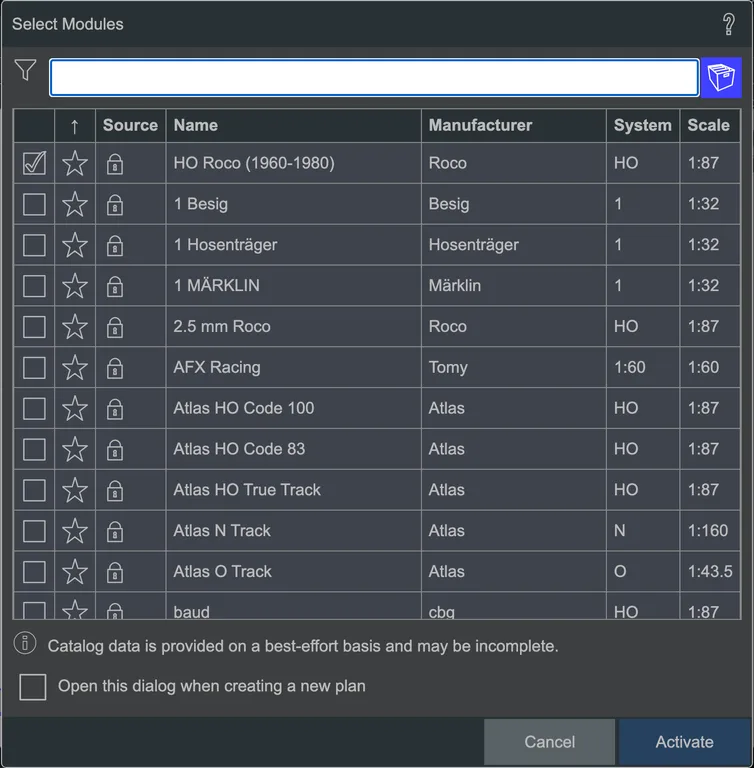 The "Module selection" dialog.
Open it via View → Module selection… or the m key. The selection isn't a one-time decision: you can change it at any time, even in the middle of a plan.
«Module» here means track system
In Raily, a module is a track system: all the elements of one manufacturer's system, for example Märklin C track or Roco Line with roadbed. It has nothing to do with the modules of modular layout building (Fremo, standard segments).
Selecting
A click on a row activates the module or switches it off. Several can be active at the same time; that's the normal case as soon as two systems occur in the plan.
Mastering the list
The list is long. Five things help:
- Search field: typing filters by name. Press ↓ to jump straight from the search field into the table.
- Star: marks a module as a favorite.
- Archive box: the box to the right of the search field. Closed, it hides clearly discontinued modules; open, all of them are shown. Open it for a plan with older track.
- Only your own modules: the pencil to the right of the archive box narrows the list to the modules in your library. It only appears once you have modules of your own. The module editor, which opens a module from the same list, remembers its setting separately.
- Column sorting by Source, Name, Manufacturer, System and Scale. Without a sort of your own, favorites come first, then active modules, then alphabetical order.
Where a module comes from
The first column, Source, carries an icon; hover over it and it explains itself:
| Icon | Meaning |
|---|---|
| Comes with Raily | |
| From your own module library, or your version that replaces one that comes with Raily. The icon is a button, see below | |
| Comes with the open plan, or was loaded for this session only; it is not stored in your library |
Where your library lives
| Desktop app | as files on your computer. Help → About… (macOS: Raily → About…) shows the Your own modules folder under "Where your files are kept" as soon as you've saved your first module |
| Browser | logged in: on the raily.ch server; otherwise in the browser's storage |
Back to the Raily version
If you've edited a module that comes with Raily, your version now stands in its place, and the in the Source column becomes a button: clicking it asks whether the Raily version should apply again, and removes yours from the library. If the bundled version has changed since you edited it, the hint on the icon says so.
For a module of your own with no bundled version behind it, the click removes it from your library after asking. The open plan keeps it as its own as long as it is built with it, and takes it along when saved.
Saved plans keep their version
A plan you saved with your version still carries it. Raily asks, when you open it, which of the two should apply, and remembers the answer for exactly these two versions. So only your library gets tidied up — old plans stay as they were.
Opening when creating a plan
The checkbox "Open this dialog when creating a new plan" shows the module selection automatically every time you start a new plan.
About the catalog data
At the bottom is the note "Catalog data is provided on a best-effort basis and may be incomplete." Clicking it explains in detail where the measurements come from and where they run into limits, under Technical limits.
See also
- Getting started 1: Build and look
- Element info: the catalog data of a single piece of track
- Flex track: when no track from the module fits
- Inventory (dialog): which parts your plan needs
- Technical limits: the origin and accuracy of the catalog data