
Getting started 4: Tunnels
There are two ways to a tunnel. The first is quick, the second is the one you will use later.
Load File → Example Plans…, folder Tutorial, plan tutorial4 — the same three exercise
groups as in the last step.
The direct way: from the selection
Select the three upper straights (with a double-click, for instance) and choose Create tunnel… with the right mouse button. The dialog asks for the cross section and the dimensions, and Raily pulls the profile along the track.
The catch: a tunnel made this way always runs exactly from element boundary to element boundary. It begins and ends where a piece of track begins and ends — not where you want the ground in front of the portal. And if you later swap or move a piece of track, the tunnel knows nothing about it.
The recommended way: tunnel annotations
A tunnel is a stretch of track in just the same way as the mark from step 3 — and is set in just the same way.
In the annotations' multi-tool button, choose Add tunnel annotation.
From here the rules you already know apply:
- The marker has to sit on the track.
- A single marker reaches to the end of the track; a counterpart bounds it.
- On a circle you always need two.
- Right mouse button → Refresh annotation recomputes the region and builds the tunnel.
Set a pair on the upper straights, refresh, and switch to 3D view: the tunnel is there, with portals exactly where your markers are.
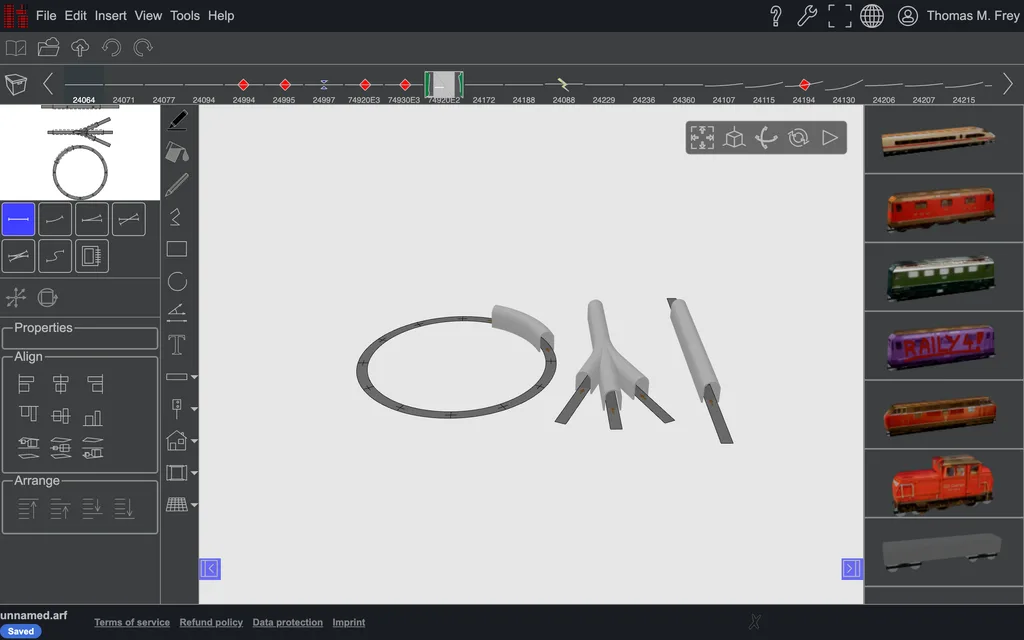 The same three exercises become three tunnels, including over the switch, where one region turns
into a portal with three exits.
The same three exercises become three tunnels, including over the switch, where one region turns
into a portal with three exits.
The advantage over the direct way: the portals sit freely on the track rather than at element boundaries, and when the track changes, refreshing again brings the tunnel with it. A further advantage is that going through an annotation can also "build" the tunnel into a terrain automatically.
For comparison
tutorial4b holds the tunnel annotations as set, tutorial4c the tunnels built from them.
Next
See also
- Create tunnel — cross sections, dimensions, profile offset
- Track annotations in detail
- Editing terrain