Walking and cameras
Besides trains, there are three objects you can look through: a walker that goes on foot, a freely flying camera, and a drone. They are in Scenery and life, and once placed they appear in the object panel next to the trains. How to switch to their view is covered under Navigation.
| Walker | snaps its feet to the surface below it when placed. It walks over terrain and buildings, takes steps, refuses slopes over 45°, and falls off an edge. Person, dog, cat, horse, or giraffe |
| Camera | a viewpoint for any angle neither walker nor train can reach. It flies straight through everything |
| Drone | the same thing as a visible flying craft that climbs and descends with momentum. It launches two meters above the clicked point |
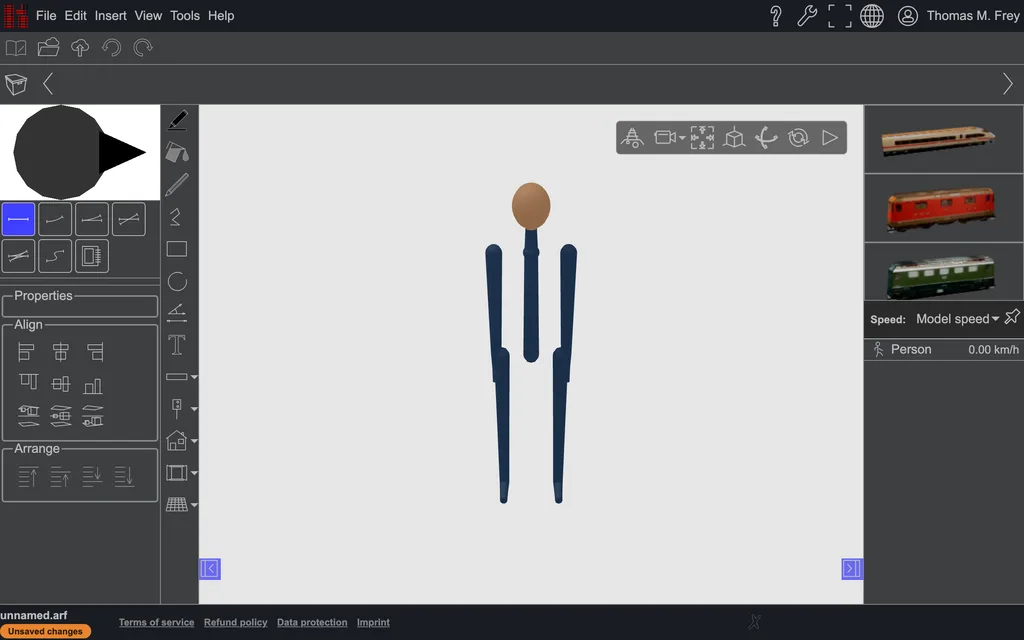 A freshly placed walker.
Speed, facing, and size are in the properties. How a drone banks into its turns is chosen with Flying controls in Settings.
Controls
The animation must be running. Then the same keys apply as in the cab:
| Key (hold) | |
|---|---|
| ↑ / ↓ | forward / backward |
| ← / → | turn |
| E / Q | climb / descend, camera and drone only |
| Shift | the walker runs, the drone flies faster |
| pageup / pagedown | look up and down without changing direction |
The cockpit view button switches to the next controllable object with every press, whether train, walker, camera, or drone.
Boarding
Standing beside a vehicle, the walker boards it with Enter and rides along, also while the vehicle is moving; a second Enter sets it down beside it again. In the object panel does the same for the selected walker. In a wagon and on a boat's deck it walks on, held by floor, walls and ceiling, on deck by the rail. In a car, a bus with a low ceiling or the tank it sits, looks out ahead, and cannot walk about. There are no doors yet, so the key is the only way in and out. If the vehicle tips over, the walker stands beside it. The pin stores, with the starting point, what the walker is riding in: after opening, it boards it again as soon as the vehicle is there. For a train the train itself has to be stored, which at the top of the list does for everything at once.
Starting point
Walker, camera, drone, and train each have a stored starting position. That is where they begin when the plan is opened; wherever they have moved to since is not stored in the plan. Move one like any other element, and its starting point moves with it.
In the object panel, each entry has two buttons:
-
The pin stores the current position as the starting point. at the top of the list does the same for everything at once, the simulation clock included. That covers whether the animation is running: pinned while it runs, the animation starts by itself when the plan is opened and after .
-
brings the object back to its starting point. B does the same for the object you are currently controlling, for example after a crash.
next to Start animation brings everything in the plan back, and sets the clock to its stored start.
See also
- Navigation in 2D and 3D: cockpit view and following
- Placing trains
- Environment: the simulation clock