Layers
A layer groups together objects that you want to hide as a set or lock against changes: the room with the table, the imported template, the finished station. An object sits on at most one layer. As long as everything lies flat on the table, you don't need any; as soon as things start to overlap, they save you from mis-clicks.
Tools → Layer tool… opens the window, as does Shift+L. It stays open while you keep working.
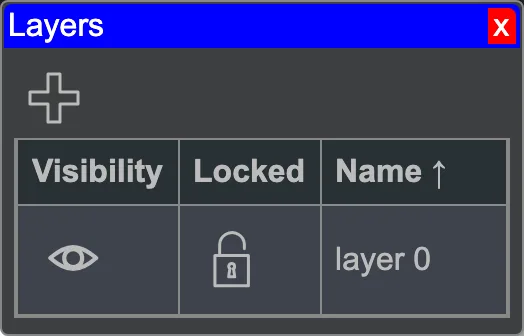 The layer tool window.
The list
| Column | |
|---|---|
| Visibility | visible, hidden |
| Locked | unlocked, locked |
| Display | normal, faint, wireframe, mesh, x-ray: see below |
| Name | the name you give it |
Hover over a row, and two buttons appear by the name: Rename and Delete Layer. The button below creates a new layer, visible and unlocked.
The last layer stays
The delete button disappears once only one layer is left. Deleting a layer doesn't delete its objects. They then belong to no layer any more, and are always visible and selectable.
What hidden and locked mean
- Hidden is not drawn, neither in 2D nor in 3D, and doesn't come along when printing either.
- Locked is drawn, but cannot be selected: no click, no selection rectangle, no Select all. Whatever was already selected drops out of the selection.
Locked is often more useful than hidden
If you just don't want to move an object by accident, lock its layer instead of hiding it. That way you can still see what you need to keep clear of.
How a layer is drawn
Faint draws the layer pale, as a background to work against. Wireframe draws only its lines and outlines, without fills; a curved surface gets rings and meridians, like a globe. Mesh draws every triangle its surfaces are made of, the way Raily 4 drew a wireframe layer. X-ray makes its surfaces see-through, so what lies beneath or inside shows. The display applies in 2D and in 3D; printing and export draw every visible layer as normal. Plans from Raily 4 keep their wireframe and faint layers.
Putting an object on a layer
Newly added objects are on no layer. To put them on one, select them and call up Edit → Set Layer…, or press L. The dialog shows the plan's layers and creates a new one on request. Next to the name is the same pair of icons, so you can see what you're taking on if you put something on a hidden or locked layer.
What separate layers are worth it for
- Room and table: room walls, doors, dimension sketches. Gone with one click for the 3D view and for printing.
- Templates: the imported image you trace the plan over. Lock this layer as soon as the template is scaled correctly.
- Finished sections: the station that's done. Locked, it no longer gets in the way while you build the line next to it.
- Labels and legends: things you may need for printing, but that otherwise get in the way while planning.
Annotations bring their own layers
As soon as you place the first annotation, Raily creates two layers by itself: annotation-markers for the markers, and annotations for what's generated — bands, tube outlines and the like. That lets you hide both with a single click, instead of hunting down every marker one by one. If you want an annotation's results on a different layer, you can set that yourself per marker group, under Layer of the output.
Layers are no substitute for groups
A layer says what you can see and touch; it doesn't group anything together. Whatever needs to move together belongs in a group.
See also
- Selecting objects
- Groups
- Printing
- Image 2D
- Track annotations in detail: the two layers that annotations create on their own
- Keyboard shortcuts