
Track annotations in detail
How to set and refresh an annotation is in Getting started 3. This page covers what goes beyond that.
All annotations at once
When the track layout has changed, every region running over the changed spot is stale. Bringing them up to date one at a time soon becomes tedious. Tools → Track annotations… opens the Refresh Track Annotations dialog, which shows them all at once.
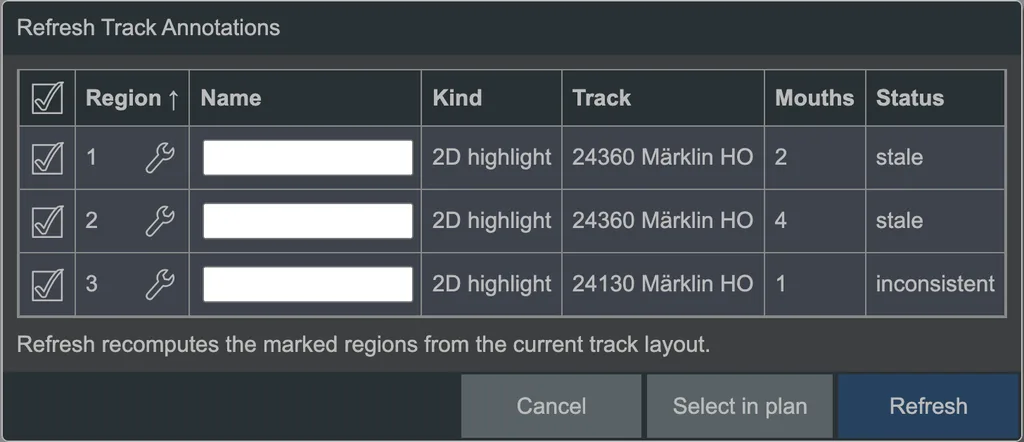 The dialog for refreshing track annotations.
Each row is one region:
| Column | Meaning |
|---|---|
| Region | Its number. The spanner beside it opens its parameters |
| Name | The region name, if the kind knows one (see below) — editable here |
| Kind | 2D highlight, Tunnel, Cut & fill, Viaduct … |
| Track | The track the marker is anchored to |
| Mouths | How many markers bound the region |
| Status | See below |
| Status | What it means |
|---|---|
| applied | The region agrees with the track layout |
| stale | Track has changed, the region has not been recomputed yet |
| inconsistent | The region loops back into its own mouth — usually a ring with only one mouth |
| unresolved | The region could not be computed |
| not on a track | The marker is not anchored to any track |
The tick on the left chooses what gets refreshed. Refresh recomputes the ticked regions from the current track layout and then reports how many were applied and how many were not, for one of the reasons above. Select in plan jumps to the annotations of the ticked rows.
It says «stale» after loading
A loaded plan shows what it last drew; regions are not recomputed when it opens. So "stale" here does not mean anything is wrong — a click on Refresh is enough.
Two dedicated layers
Raily puts annotations on two layers automatically, as soon as it needs them:
| Layer | Carries | State |
|---|---|---|
| annotation-markers | the markers themselves | visible and unlocked — you're still meant to touch them |
| annotations | the generated result: everything Refresh builds | visible, locked, so a mark does not get moved by accident |
That lets you show or hide the whole thing with one click in the layer tool — the markers alone, when they are in the way while you build, or the generated result, when you want to see only the bare track.
A different layer for the output
Open a marker's parameters and expand Layer of the output: Automatic means the automatic layer annotations; a chosen value applies only to this region.
Naming regions (advanced)
Two marks on the same stretch of track are not a contradiction — one may overlap the other or lie entirely inside it. So that Raily knows which marker belongs to which region, markers carry a name.
The rule behind it: a marker only bounds regions of its own name. A marker with a different name is not a boundary — it simply does not belong there. Without this mechanism every second mark would cut the first one in two.
So you need the name exactly when two regions of the same kind are meant to overlap — a mark for the station area, say, and a second, shorter one for the approach inside it.
Not every kind knows names
2D highlight, Block and Speed limit are told apart by name. Tunnel, Cut & fill and Viaduct, on the other hand, are bounded by their placement: there, two markers facing each other form a region, and two regions may not overlap — one bore cannot sit inside another.
A copy with no connection (advanced)
Generate standalone in an annotation's context menu rebuilds the result as an ordinary object and detaches it from the annotation: refreshing later no longer changes that copy.
It needs an annotation that sits on a track and resolves to a consistent region — otherwise there is nothing to generate.
See also
- Getting started 3: Annotations
- Signals, barriers and blocks: what a block and a speed limit do
- Getting started 4: Tunnels
- Create tunnel